Back to QMetry All Products Help Page
 QMetry Test Management Plug-in Documentation
QMetry Test Management plugin for Jenkins is designed to seamlessly integrate your CI/CD pipeline with QMetry Test Management.
Download Link: QMetry Test Management for Jenkins
About the Plugin
QMetry Test Management plugin for Jenkins has been designed to seamlessly integrate your CI/CD pipeline with QMetry.
Easily configure Jenkins to submit your test results to QMetry without needing to write any code or deal with REST API. Your Test Results could be from any automation framework like Cucumber, Test NG, JUnit, QAF and more.
For more info visit QMetry Test Management.
Read the following topics on this page:
- Pre-requisites
- How to install QMetry Test Management Plugin for Jenkins
- Configuring a standard Jenkins Job.
- Configuring QMetry Plugin job as a post build action.
- Triggering the job and publishing results in QMetry.
Pre-requisites
- QMetry Test Management installed on Server or Cloud
- Jenkins installation
How to install QMetry Test Management Plugin for Jenkins
- Login to Jenkins and go to Manage Jenkins.
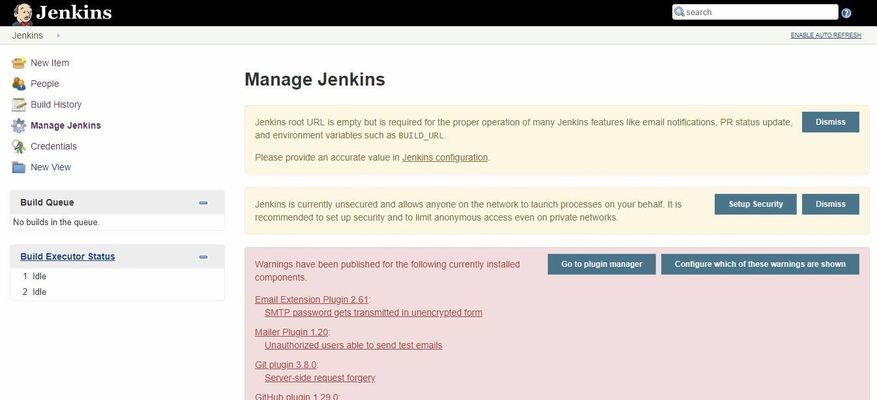
2. Locate the Manage Plugins section.

3. Open the Available tab and search for "QMetry Test Management".
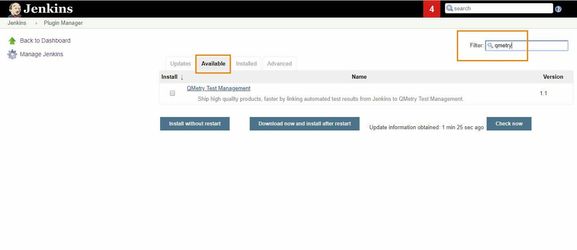
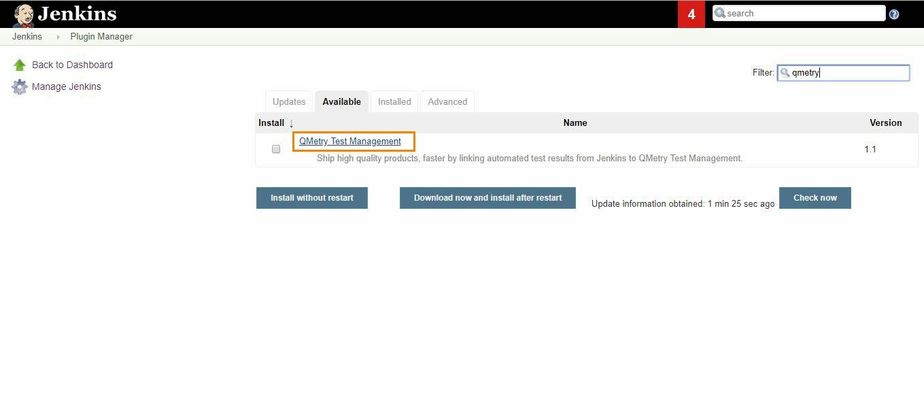
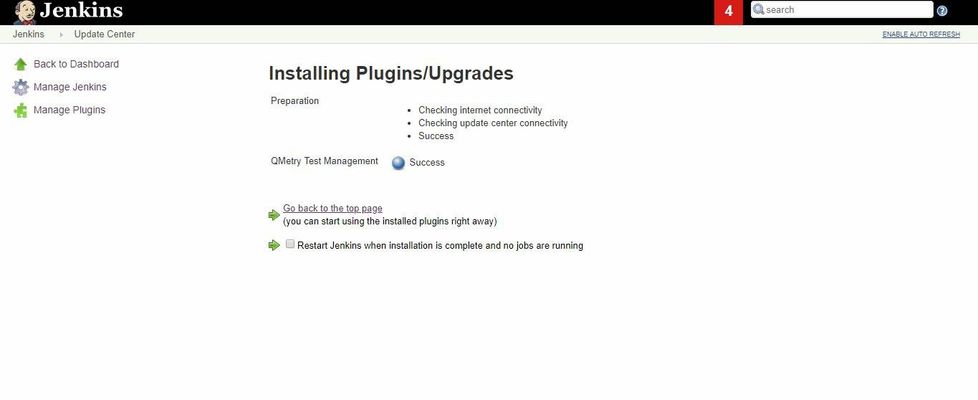
4. Locate and select the QMetry Test Management Plugin. Choose install option either Install without Restart OR Download Now and install after restart.
Configuring a Standard Jenkins job
You can configure Jenkins job through either of the following options:
- Freestyle Project
- Pipeline
Freestyle project
Let’s create a standard Freestyle job in Jenkins.
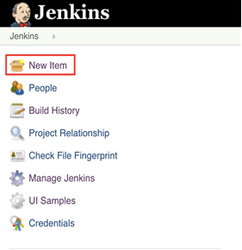
- To create a new Jenkins job, click on the New Item option on the Jenkins menu.
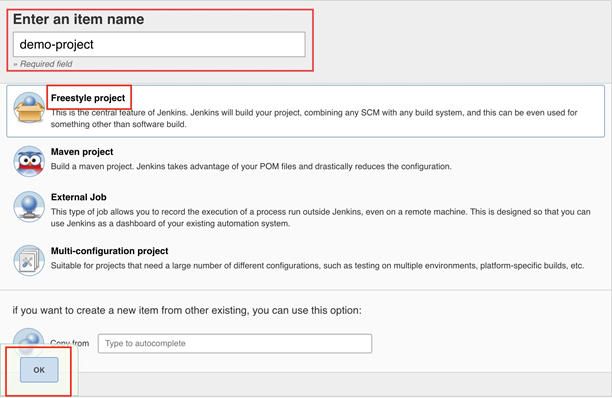
2. Provide a name for your job.
Select Freestyle project on the screen and then click OK.
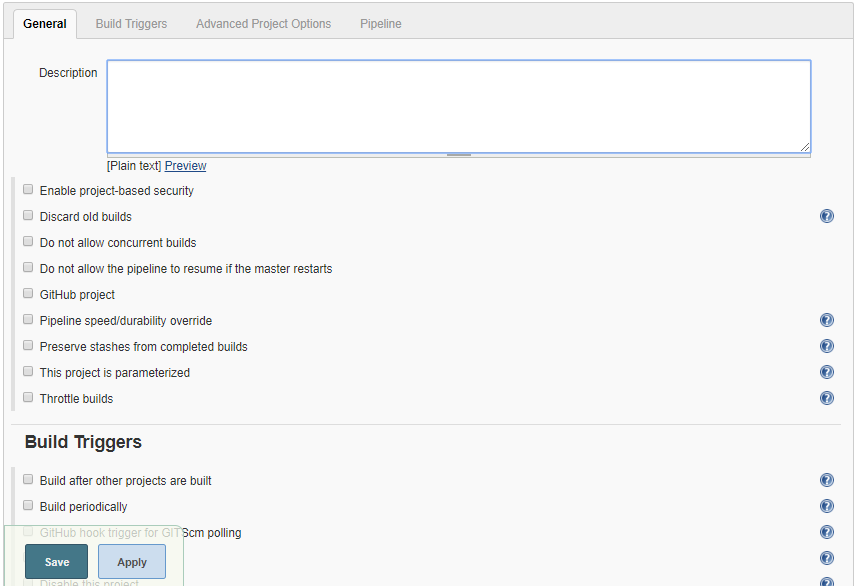
3. Next, the configuration page appears where you can configure your job by various categories: General, Source Code Management (SCM), Build Triggers, Build, and Post build actions.
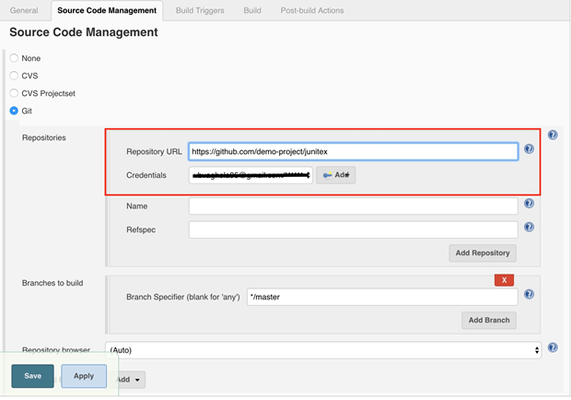
4. On the Source Code Management tab, select the appropriate option in which you have your source code. For example, here it is “Git”. So, select “Git” and provide the necessary information. (Note: You need to configure GitHub plugin in global configuration).
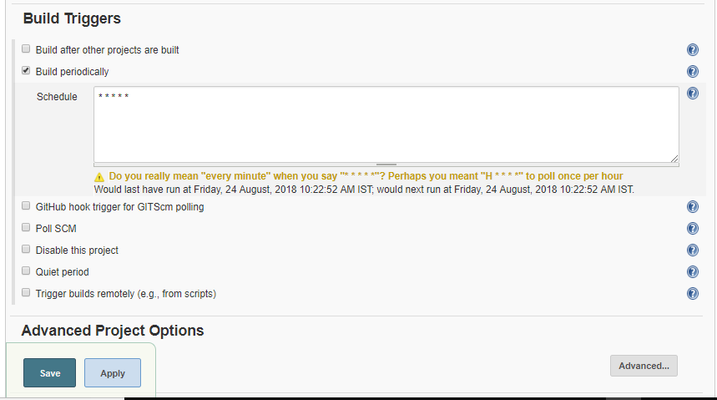
5. Optionally, you can set Build Triggers.
Select the Build Triggers tab. Let’s just add a periodic trigger which triggers build every minute – every hour – every day (Schedule: * * * * *).
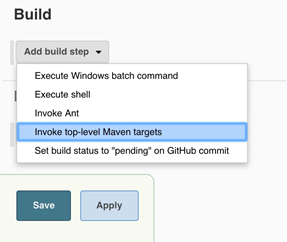
6. Next, Select a build step. You can select from various options: Ant, Maven, Windows batch process, etc. For example, for a maven project, trigger a maven build and specify goals.

Next step is to add Post-build Actions. Here, add the plugin: “QMetry Test Management Plugin”.
Configuring QMetry Test Management Plugin as a Post-build Action
Jenkins works as a bridge between QMetry Test Management and automation frameworks. To publish results in QMetry, define another post-build action.
1. On the Add post-build Actions drop-down, select the "Publish test result to QMetry" option.
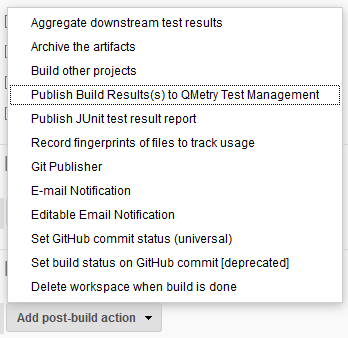
2. Fill in the required data. You can get more information regarding fields by clicking on the Help icon for respective fields. It explains what to enter in that particular field.
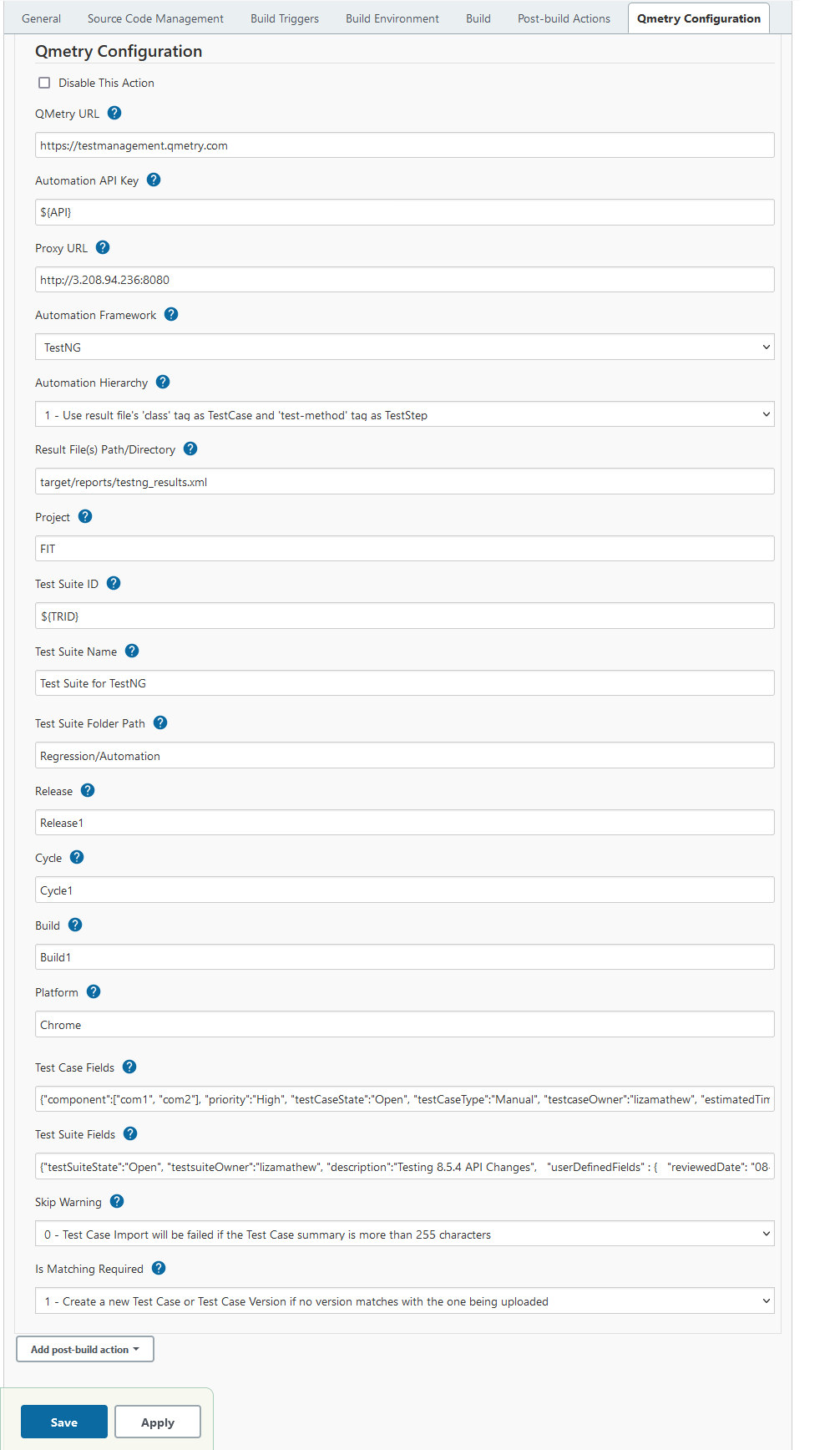
Parameters
Parameter | Type | Required | Description | ||||||
QMetry URL | string | Yes | QMetry Test Management URL | ||||||
Automation API Key | string | Yes | Your API Key. API Key is unique for a specific user in a single project. The result will be imported for the project associated with the given API Key. | ||||||
| Proxy URL | string | No | Enter Proxy URL if you have configured any Proxy. | ||||||
Automation Framework | string | Yes | Format of result file to be imported. Supported formats:
| ||||||
| Automation Hierarchy | string | No | Hierarchy which will be used to parse test result files on QTM. Supported formats are :- JUnit 1 - Use current Hierarchy in which JUnit Testcase is treated as TestStep and Testsuite is treated as Testcase (default) JUnit File Type 1: Wherein testsuite "name" matches the test case "classname".
JUnit File Type 2: Wherein testsuite "name" does not match the test case "classname".
2 - Use Junit Testcase as Testcase and link all those (from all testsuites and all files of Junit) to one Testsuite 3 - Create Multiple Testsuites and then link their respective testcases in corresponding Testsuites TestNG 1 - Use class 'name' as Testcase and test-method as TestStep (default) 2 - Use test-method as Testcase 3 - Use test 'name' as Testcase and test-method as TestStep | ||||||
| Result File(s) Path/Directory | string | Yes | Path wherein your result file to be uploaded. Supported file extensions: .json, .xml and .zip (zip file must contain files of the format given in the 'Automation Framework' param). If your automation generates multiple result files of the supported format in a folder then provide the absolute path till the folder name(It should not be the path till workspace). QMetry plugin will zip all supported format files and upload them to QMetry. | ||||||
| Test Suite ID | string | No | Key of the test suite exists in QMetry. In the absence of Key, a new test suite will be created. Note: If for Junit - 3 - Create Multiple Testsuites and then link their respective testcases in corresponding Testsuites - is chosen, then the parameter Test Suite ID will be ignored. | ||||||
| Test Suite Name | string | No | If existing "testsuiteId" is not being used and auto-generated name for the new test suite is not desired, then a custom test suite name can be entered for this parameter. Note: If for Junit - 3 - Create Multiple Testsuites and then link their respective testcases in corresponding Testsuites - is chosen, then this parameter will be ignored. | ||||||
| Test Suite Folder Path | string | No | New test suites will be created in a specified test suite folder while importing automated test results. If the folder does not exist, it gets created. This parameter will be ignored if the test suite is being reused. This parameter is not supported for server edition of QTM now and if specified, it will be ignored. | ||||||
| Project | string | Yes | ID/Key/Name of the Project within which the test suite will be created. | ||||||
| Release | string | *No | ID/Name of the Release in which the test execution will be created. If Release is not mentioned, then Default Release will be considered. | ||||||
| Cycle | string | No | ID/Name of the Cycle in which the test execution will be created. If Cycle is not mentioned, then Default Cycle will be considered. | ||||||
| Build | string | No | Build Name/Id. In the absence of a value, it will create the default build. | ||||||
| Platform | string | No | Name of Platform on which test run to be executed. | ||||||
| Test Case Fields | JSON | No | Mention system defined fields and user defined fields for test case as shown in Test Case JSON format below. All the mandatory fields other than Summary should be mentioned in this parameter. | ||||||
| Test Suite Fields | JSON | No | Mention system defined fields and user defined fields for test case as shown in Test Suite JSON format below. All the mandatory fields other than Summary should be mentioned in this parameter. This parameter will be ignored if existing Test suite Id is used to upload results. | ||||||
Skip Warning | string | No | Skip Warning while uploading test result file(s) to QMetry. Supported values are: 0 - Test Case Import will be failed if the Test Case summary is more than 255 characters. (default) 1 - Test Cases can be imported by ignoring the warning about summary length. If the test case summary is longer, it will be truncated to 255 characters. | ||||||
| Is Matching Required | string | No | Create a new test case version or reuse the already created version while uploading test result file(s) to QMetry. 1 - Create a new test case or test case version if the test summary and steps of any of the test case versions do not match with the test case in the result file. (default) 0 - Reuse already linked test case version in test suite or auto link the existing latest version of test case to test suite, if the test case entity key OR test case summary matches with the test case in the result file. The execution status of the linked test cases will be updated. This parameter is not supported for server edition of QTM now and if specified, it will be ignored. |
* Release is mandatory if Cycle is mentioned.
Robot Framework
Robot Framework result files can be of multiple hierarchy structures. The structure of these files depends upon the libraries that are used to generate the automation results.
Robot File Tag - Structure & Hierarchy | Tag that is created as QMetry Test Suite | Tag that is created as QMetry Test Case | Tag that is created as QMetry Test Case Step |
|---|---|---|---|
suite>test case>steps | <suite> tag will be created as Test Suite. | <test> tag under the <suite> tag will be considered as Test Case. | <kw> tag under the<test> tag will be considered as Test Case Step. |
suite>(sub/inner) suite>test case>steps | <(sub/inner) suite> tag under the <suite> tag will be considered as single Test Suite. Multiple test suites will be created each (sub/inner) suites. | <test> tag under the <(sub/inner) suite> tag will be considered as Test Case. | <kw> tag under the <test> tag will be considered as Test Case Step. |
suite>test case>steps>sub steps | <suite> tag will be considered as Test Suite | <test> tag under the <suite> tag will be considered as Test Case. | <kw> tag under the <test> tag will be considered as Test Case Step. <kw> tag under the <kw> tag (i.e. sub steps) will be ignored and will not be imported into QMetry. |
Supported Fields
- Field Name as mentioned in QMetry > Customization > Manage Fields > Field Name
- For Look up list and multi lookup list fields
- If the value does not exist in Project and Auto Create value feature is on for Project, the value will get added in the list and it will be assigned to the test case.
- If the value does not exist in Project and Auto Create value feature is off for Project, the value will not be added in the list and Test Case field will be blank or have default value in it.
- If a new value is added to Multi Look Up List, the older value will remain unchanged and the new value will be added to the list.
- List values are added to the same version of the test case.
Field | Example | Test Case | Test Suite | Notes |
|---|---|---|---|---|
"component" | "component" : ["Label1, "Label2"] | Yes | No | Old values will persist and new value will get set e.g., L1 and L2 are set and L3 is assigned, then the updated values for component will be L1, L2 and L3. |
| "priority" | "priority" : "Minor" | Yes | No | As mentioned for Look Up and Multi Look Up lists above. |
| "testCaseState" | "testCaseState":"Open" | Yes | No | |
| "testCaseType" | "testCaseType":"UI" | Yes | No | |
"testcaseOwner" | "testCaseType":"John" | Yes | No | userAlias should be passed in request. Owner will not be set if the requested user is not found or the user doesn't have right for the Test Case module. |
"description" | "description":"Sample Description." | Yes | Yes | This will be set as requested. |
| "estimatedTime" | "estimatedTime":6 | Yes | No | This will be set as requested (in minutes). |
"testSuiteState" | "testSuiteState":"Open" | No | Yes | A new Status value will be added if it does not exist in the project. |
"testsuiteOwner" | "testsuiteOwner":"lizamathew" | No | Yes | userAlias should be passed in request. Owner will not be set if the requested user is not found or the user doesn't have right for the Test Suite module. |
User Defined Fields
| Custom Field Type | Validation Rule | Example | Notes |
|---|---|---|---|
| STRING | It accepts text in a single line | "tagName": "Sample test asset." | The field value will be set as requested. |
| NUMBER | It accepts any number with decimal | "executionTime": 4 | The field value will be set as requested. |
| MULTILOOKUPLIST | It accepts comma separated multiple values | "langaugePreference": ["English",Portuguese"] | Multi Lookup will be set as requested if its list value exists.
|
| LOOKUPLIST | It accepts a single value on the list | "country": ["United States"] | Lookup type will be set as requested if its list value exists.
|
| LARGETEXT | It accepts text in multiple lines | "additionalComment": "this is a sample test asset" | The field value will be set as requested. |
| DATEPICKER | It accepts the Date format that has been set in user profile | "reviewedDate": "08-30-2019" | The field value will be set as requested. |
Test Case Fields with UDFs in JSON format
{"component":["com1", "com2"],"priority":"High","testCaseState":"Open","testCaseType":"Manual","testcaseOwner":"lizamathew","estimatedTime":60,"description":"Sample Description","userDefinedFields" : {"reviewedDate": "08-30-2019","executionTime": 40,"tagName": "Sample test asset.","additionalComment": "This is a sample test asset""country": ["United States"]"langaugePreference": ["English",Portuguese"]}} |
Test Suite Fields with UDFs in JSON format
{"testSuiteState":"Open","testsuiteOwner":"lizamathew","description":"Testing 8.5.4 API Changes","userDefinedFields" : {"reviewedDate": "08-30-2019","executionTime": 40,"tagName": "Sample test asset.","additionalComment": "this is a sample test asset""country": ["United States"]"langaugePreference": ["English",Portuguese"]}} |
The following table depicts probable import result according to the scenario.
| Is System Field/UDF Mandatory? | Is Auto-Create Enabled? | Does UDF Value exist? | Import Result |
|---|---|---|---|
No | No | No | Fail |
No | No | Yes | Success |
No | Yes | No | Success |
No | Yes | Yes | Success |
Yes | No | No | Fail |
Yes | No | Yes | Success |
Yes | Yes | No | Success |
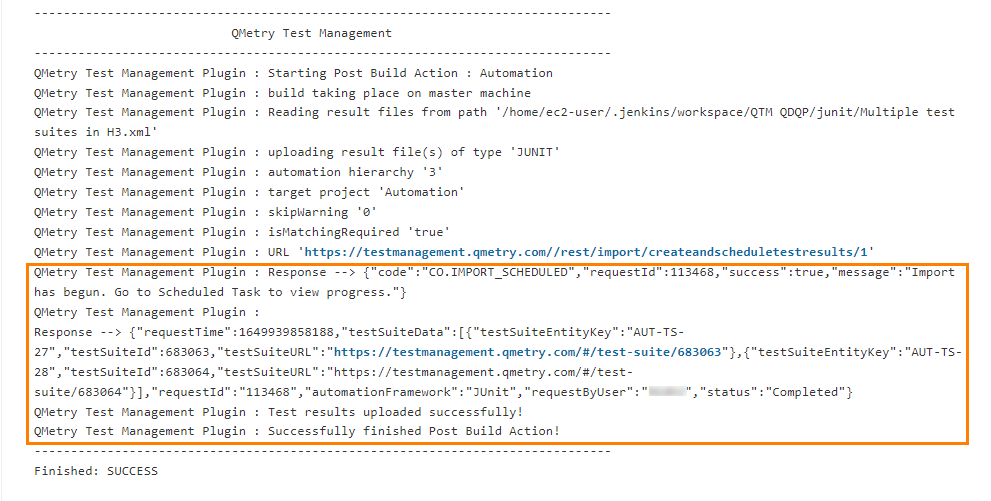
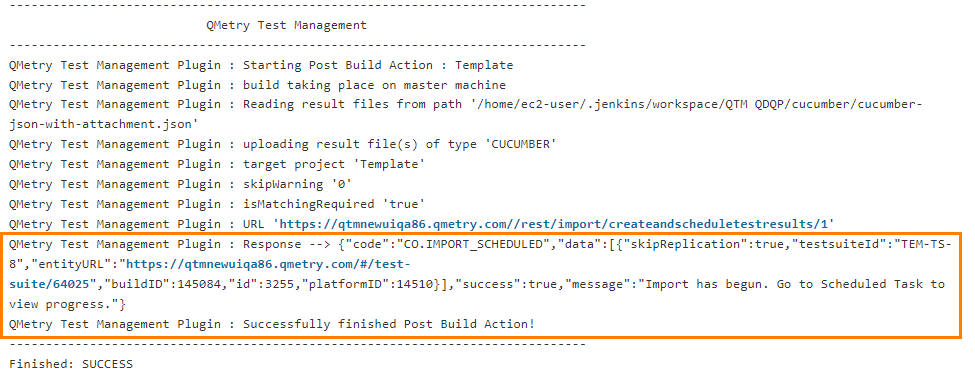
3. On successful completion of the process, you can see the console output. It displays success message for uploading the result file.
QTM Cloud
QTM Server
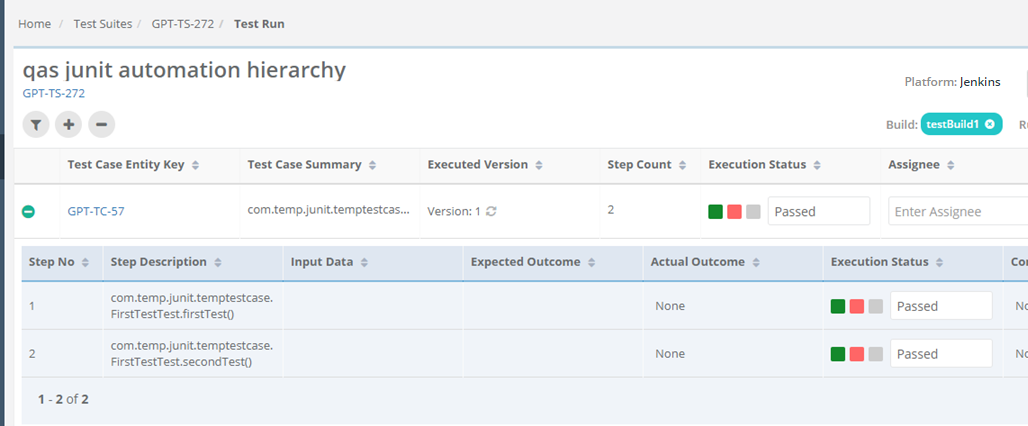
4. Finally check test execution page in QMetry and review your test run results.
Pipeline
QMetry Test Management supports Jenkins Pipeline for implementing and integrating continuous delivery pipelines into Jenkins.
Let’s create a standard Pipeline job in Jenkins.
1. To create a new Jenkins job, click on the New Item option on the Jenkins menu.
.png?version=2&modificationDate=1579241918345&cacheVersion=1&api=v2)
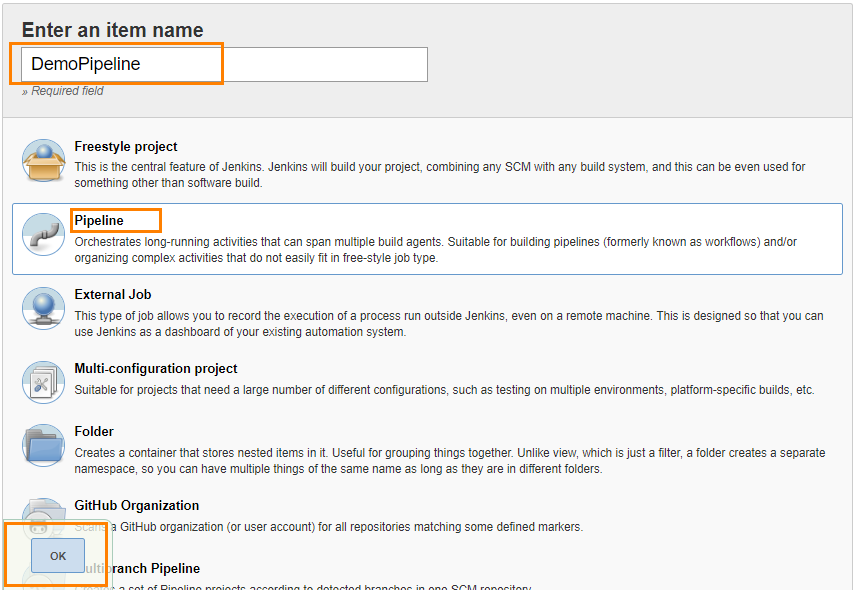
2. Provide a name for your job.
Select Pipeline on the screen and then click OK.
3. Next, the configuration page appears where you can configure your job by various categories: General, Build Triggers, Advanced Project Options, and Pipeline.
.png?version=2&modificationDate=1579242010289&cacheVersion=1&api=v2)
4. Optionally, you can set Build Triggers.
Select the Build Triggers tab. Let’s just add a periodic trigger which triggers build every minute – every hour – every day (Schedule: * * * * *).
.png?version=2&modificationDate=1579242050659&cacheVersion=1&api=v2)
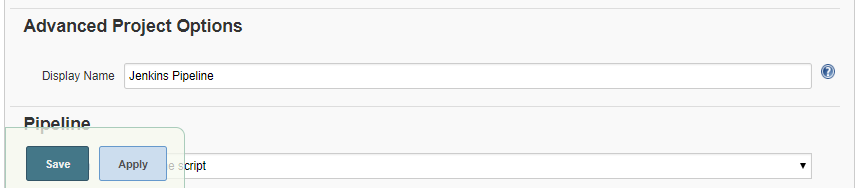
5. Advanced Project Options: This is optional. You can give Display Name which will replace the name you gave earlier to the Pipeline project.
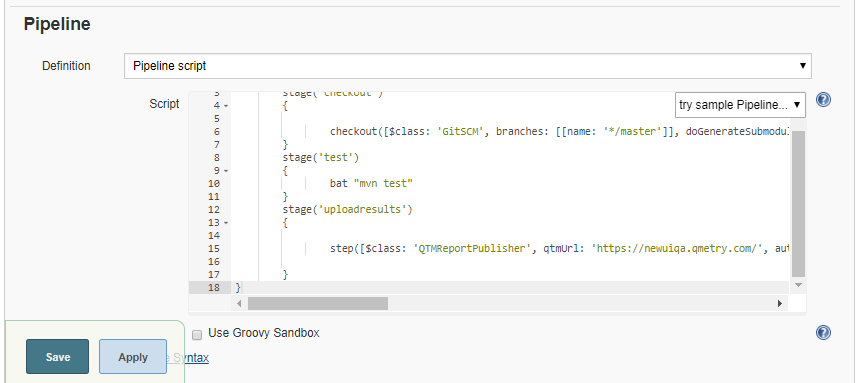
6. Jenkins works as a bridge between QMetry Test Management and automation frameworks. To publish results in QMetry, provide Pipeline script.
Enter Pipeline script to define your code repository, generate test result and upload test results into QMetry Test Management.
Code Snippet
stage('Upload Result to QTM'){
step([$class: 'QTMReportPublisher', disableaction:false, qtmUrl: 'https://newuiqa.qmetry.com/', automationFramework: 'JUNIT', automationHierarchy: '2', testResultFilePath: '/cucumber', qtmAutomationApiKey: '4FR2Oo1g42vUnb5NtDgi3JIjzrFOvUUV8QJBk38D', project : '7242', release: 'Release 1', cycle: 'Cycle 1', buildName: 'testBuild1', platformName: 'Jenkins', testSName: 'junit pipeline', proxyUrl:'', testSuiteName: 'TC2-TS-116', tsFolderPath: 'Fitness Tracker\Track1', testcaseFields: '{"description":"Automated Test case", "testCaseType":"Automated", "testCaseState":"Open", "component":["UI"], "priority":"Blocker", "testcaseOwner":"liza.mathew", "estimatedTime":"143", "userDefinedFields" : {"Integrate" : "Custom Field Testcase"}}',
testsuiteFields: '{"description":"Automated Test suite", "testsuiteOwner": "liza.mathew", "testSuiteState": "New", "userDefinedFields": {"Integrate" : "Custom Field Testsuite"}}', skipWarning: '0', isMatchingRequired: '1'])
}
Note: testSName is "Test Suite Name" and testSuiteName is "Test Suite ID" of the test suite.
Syntax of automationFramework:
- CUCUMBER
- TESTNG
- JUNIT
- QAS
- HPUFT
ROBOT
Parameters
Refer to the Parameters section for Freestyle Project above.
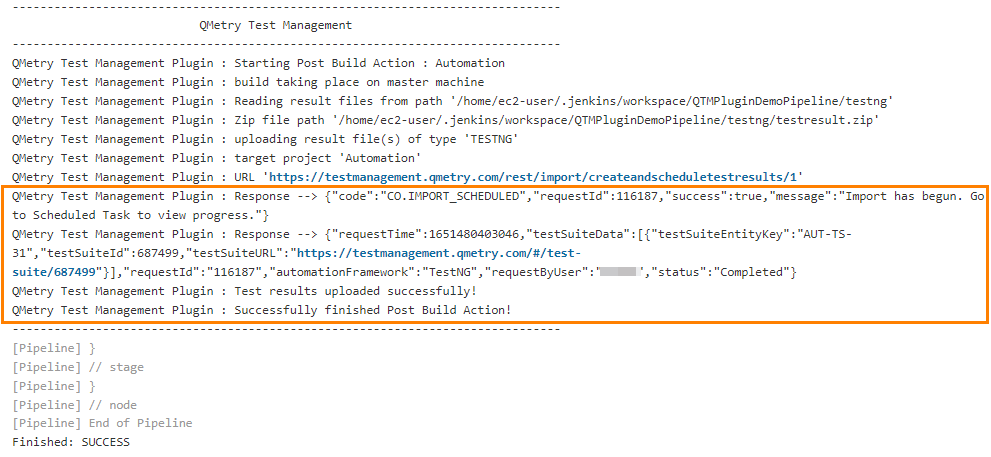
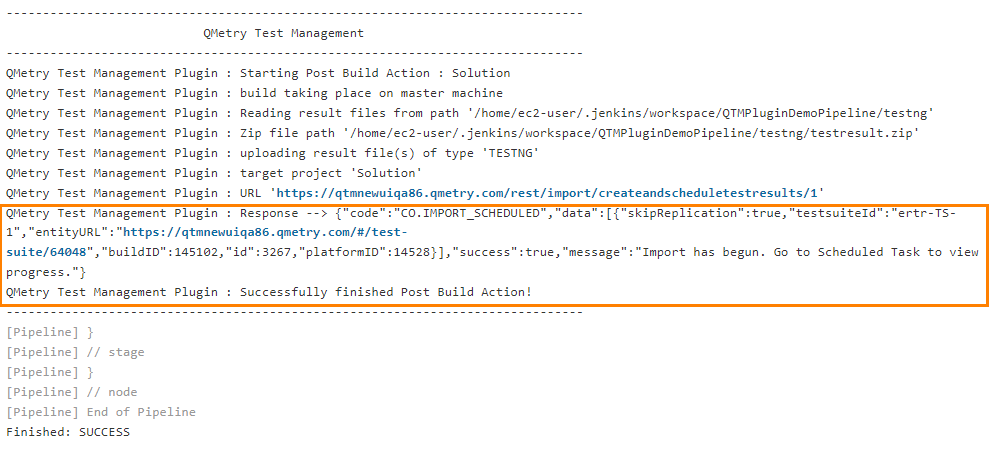
7. On successful completion of the process, you can see the console output. It displays success message for uploading the result file.
QTM Cloud
QTM Server
8. Finally check test execution page in QMetry and review your test run results.
.png?version=2&modificationDate=1579242439937&cacheVersion=1&api=v2)
Define Parameters
To define parameters for your job, select the This project is parameterized check box.
The Add Parameter drop-down is enabled with the list of parameter types. Use the drop-down button to add as many parameters as you need.
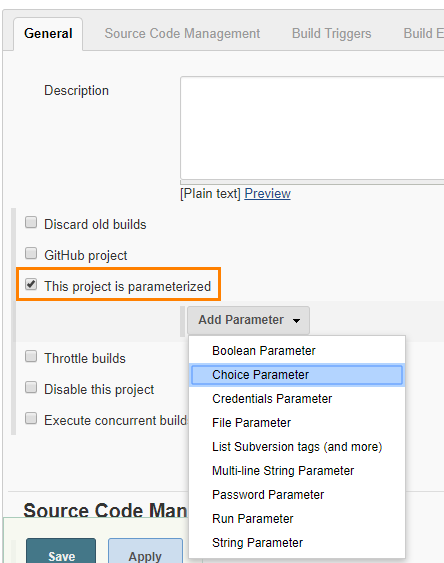
There are different parameter types available. The way parameters take effect according their respective parameter type.
For example,
Choice Parameter and String Parameter are selected, and corresponding parameters are added as shown below.
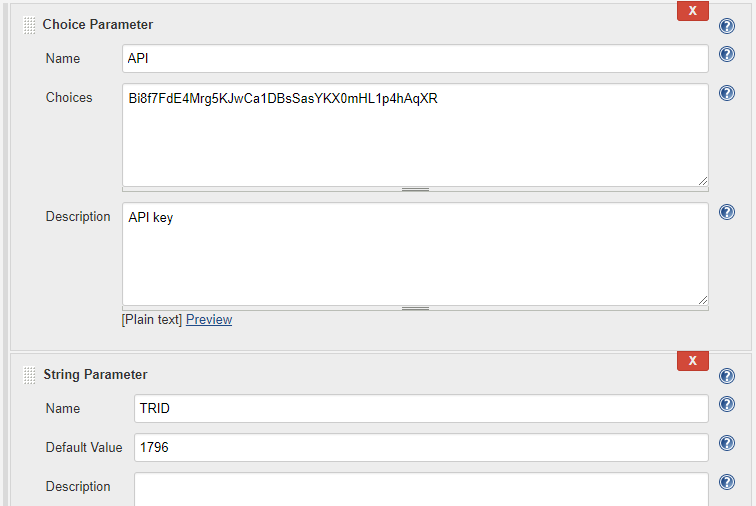
The above parameters will be parsed dynamically at the run time.
The field values should be entered in the following syntax:
${ParameterName}
For example,
For the parameters created above, the field value would be ${API} and ${TRID} respectively. The parameter values will be parsed accordingly for the corresponding fields.
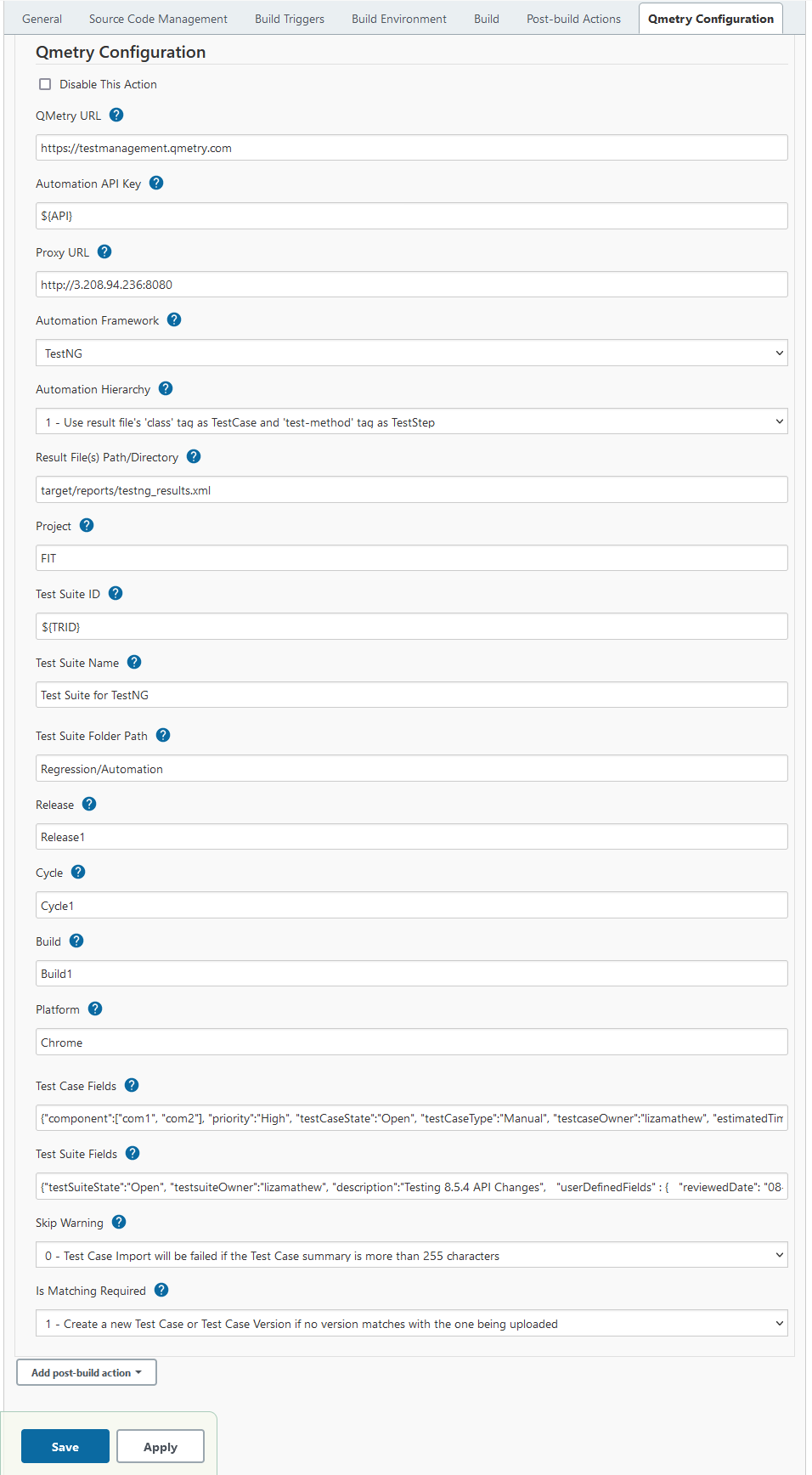
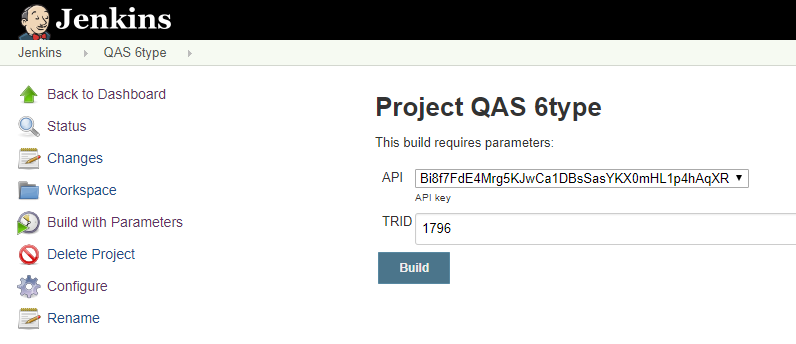
The values can also be changed before triggering the Jenkins build.
QMetry Configuration for Specflow
Specflow by default generates the output results in Specflow JSON format. QMetry can consume it as Cucumber JSON format. The following solution will generate the output result in Cucumber JSON format in parallel and the result could imported to QMetry.
Part A : Make the following changes in your Specflow Project to generate result file format as Cucumber JSON
Step 1 : Add Dependencies
Step 2 : Add the below code in .cs of feature file
[BeforeTestRun]public static void BeforeTestRun() { SpecNuts.Reporters.Add(new JsonReporter()); SpecNuts.Reporters.FinishedReport += (sender, args) => { String pathName = "specflow_cucumber.json"; System.IO.File.WriteAllText(pathName, args.Reporter.WriteToString()); Console.WriteLine("Result File: " + System.IO.Directory.GetCurrentDirectory().ToString() + System.IO.Path.DirectorySeparatorChar + pathName); };} |
Step 3 : Open Text Explorer in Visual Studio by Test > Windows > Test Explorer -> Choose Run All
Step 4 : In Visual Studio console, select show output from Test and open Report File as path given in Console
Part B : Make the following Configurations in Jenkins
Configuration Steps
- Install "MSBuild Plugin" and "VSTest Runner Plugin"
- Install Visual tools and Set path for MSBuild.exe and vstest.console.exe files in Manage Jenkins > Global Tool Configuration
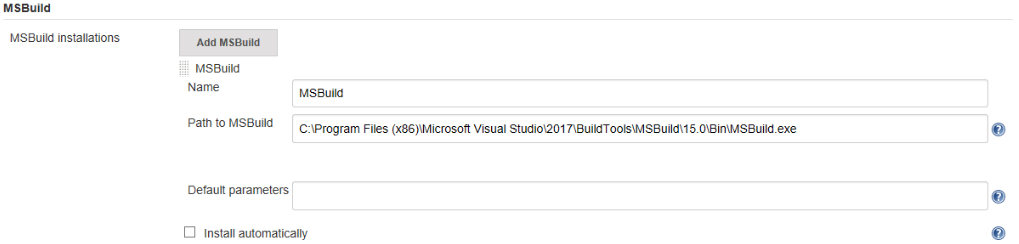
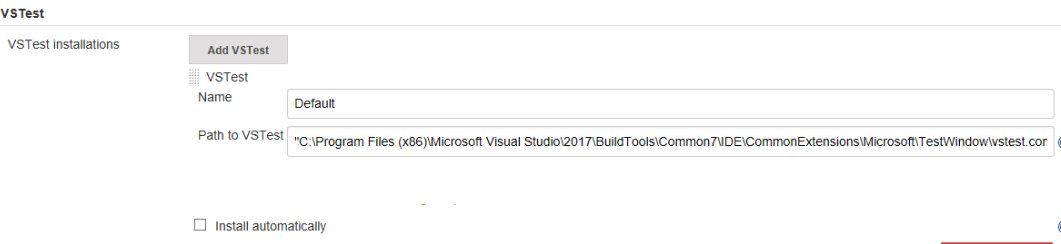
Configure the following parameters in the Jenkins Job
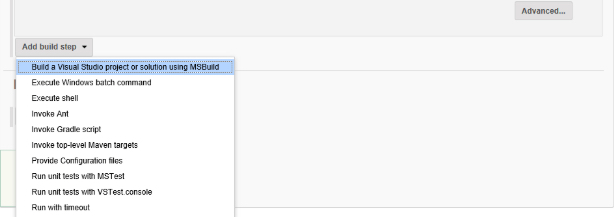
Step 1 : In the Build Step >> Choose - Build a Visual Studio project or solution using MSBuild
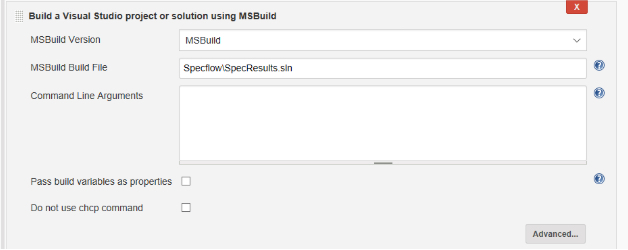
Step 2 : Provide the MsBuild Version and relative path to solution file
- Select "MSBuild Version" which is configured in Global Tool Configuration
- Specify the relative path for solution file in "MSBuild Build File"
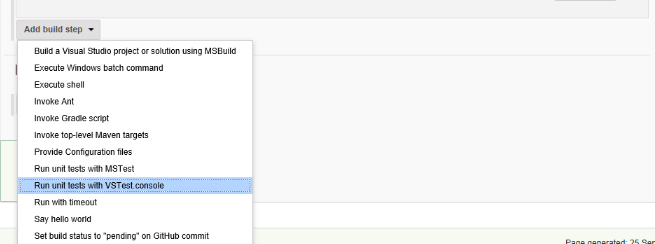
Step 3 : Select a build step for VSTest in Build Section - Run unit tests with VSTest console
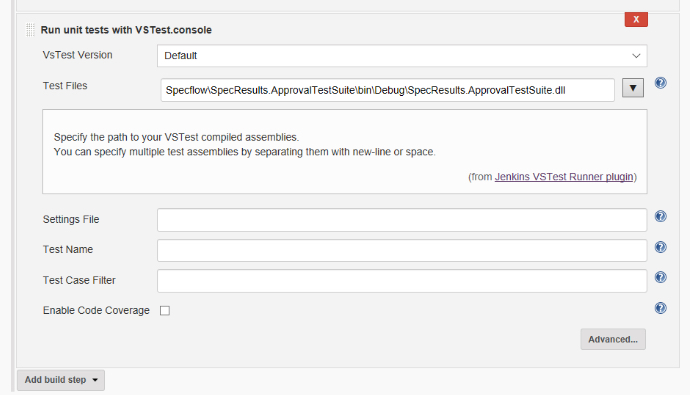
- Select "VSTest Version" which is configured in Global Tool Configuration
- Specify the relative path to your VSTest compiled assemblies in "Test Files"
Step 4 : In post build action setup QMetry Test Management plugin
- Choose "Cucumber" format to upload
- Relative Path to result file "specflow_cucumber.json"
- Choose other relevant parameters
Back to QMetry All Products Help Page