Back to QMetry All Products Help Page
Exporting Requirements
Introduction
QMetry allows its users to export selected/all requirements out of QMetry in XLSX and CSV file format in a single click. Users can save the file on to the computer drive. Users with a User Role that has “Export” rights assigned for the Requirement module can export requirements. Role based user access control for the module is managed under Customization > Roles. If the role assigned to the user does not have rights to export requirements, the Export option will appear in the disabled mode for that user.
Why would you export requirements from QMetry?
Bulk requirements for a particular project are being maintained in QMetry. A change request comes from the customer, which requires corresponding modifications in multiple requirements. QA Manager decides to update requirements in Excel file. So the team exports the requirements to Excel, makes required changes in the file and imports that excel file back into QMetry through the Requirement module.
Steps
1. Go to the Requirement module.
2. Select the folder on the tree.
3. The content on grid pane at right depends on the folder that you select on the tree. The grid pane at right displays requirement records for the folder.
You can apply Filter criteria to requirement records to export only preferred requirements.
4. Click on the cog icon  at the top right corner on the toolbar and select Export.

The next screen opens.
Choose Operation: Select Export as XLSX/CSV and click Next.

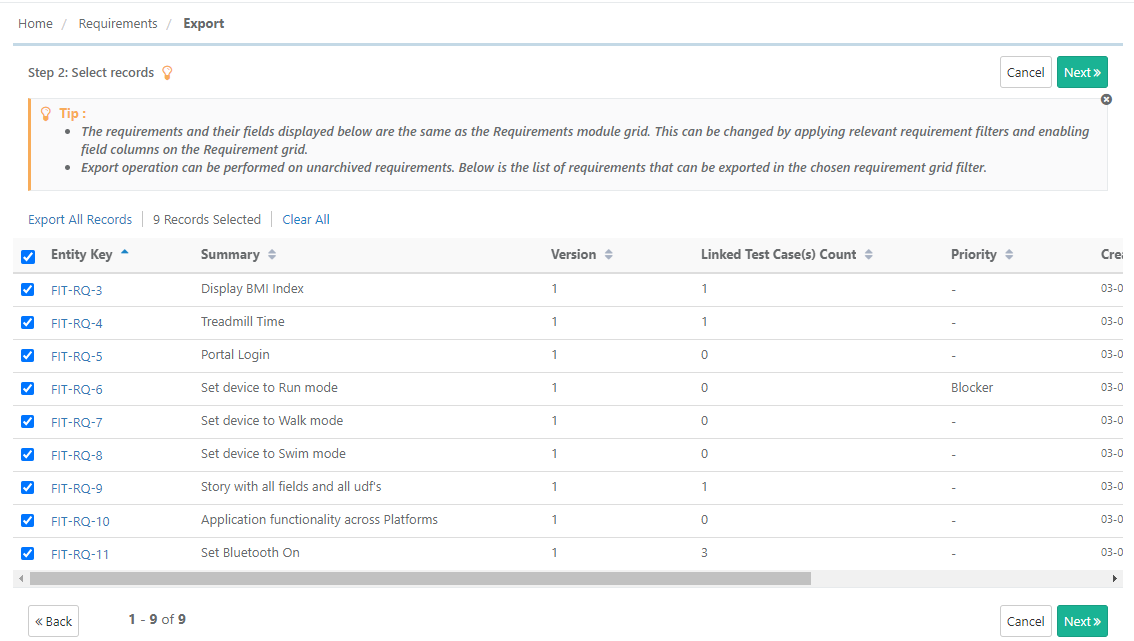
Step 2 Select records: Select requirements you want to export by selecting individual requirements.
- Export All Records: Click on the Export All Records link to select all the records across pages to export.
Once you are done with selecting requirements, click on the Next button.
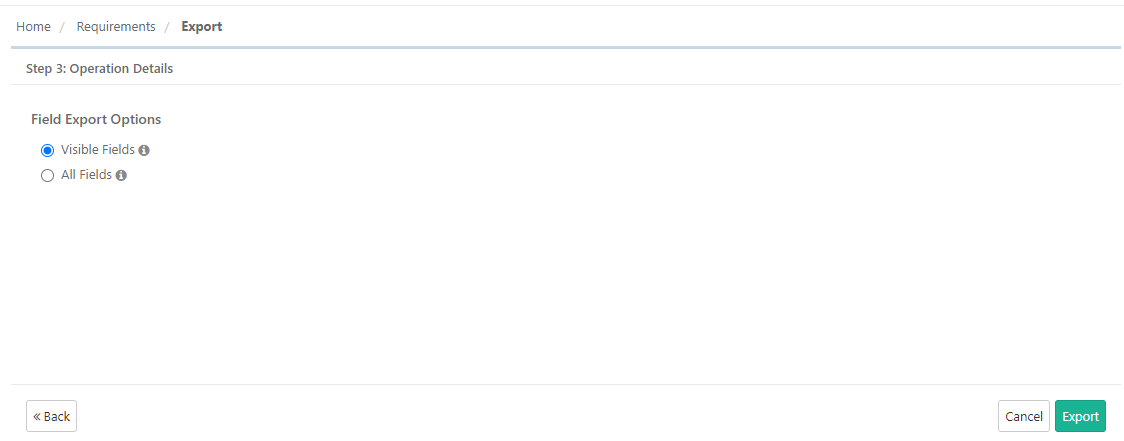
Step 3 Field Export Options
- Visible Fields: Select the option to export only visible fields on the List view screen. The export will exclude the columns which are hidden;
Note: The test case description and step description fields are included in the export irrespective of any field export options. - All Fields: Select the option to export all the fields irrespective of whether the columns are visible or hidden.
The confirmation message pops up. Click Yes to proceed.
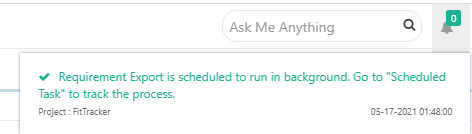
A message pops up to view the notification for the export progress. You can view the progress in the notification window on the application header. This allows scheduled exports to run in the background and allows users to continue with their other work.
You can view the progress in the Scheduled Task window by clicking on the Scheduled Task button  on the application header. This allows scheduled exports to run in the background and allows users to continue with their other work.
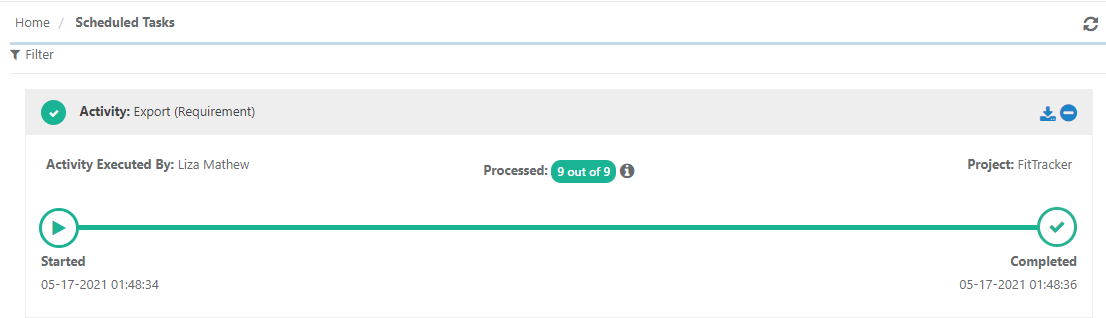
Refer to Notification Window for Export Progress for more details.
Back to QMetry All Products Help Page